How to Optimize Your Tablet for High Performance
Tablets have evolved into powerful devices capable of handling productivity, entertainment, gaming, digital art, and even professional workloads. Whether you’re using an Android tablet, an iPad, or a Windows-based tablet, maintaining peak performance is essential for a smooth user experience.
Table of Contents
- Why Tablet Performance Declines Over Time
- 1 Keep Your OS and Apps Updated
- 2 Manage Background Apps
- 3 Clear Cache and Temporary Files
- 4 Disable Unnecessary Animations
- 5 Optimize Storage Space
- 6 Adjust Screen Brightness
- 7 Secure Your Device
- 8 Limit Background Processes
- 9 Manage Widgets and Live Wallpapers
- 10 Perform a Factory Reset
- 11 Use a High-Quality SD Card
- 12 Manage Notifications
- 13 Disable Bloatware
- 14 Use a Lightweight Launcher
- 15 Optimize Battery Settings
- 16 Optimize Wi-Fi and Data Connections
- 17 Use Lighter Apps
- 18 Regular Reboots
- 19 Check for Overheating
- 20 Install a Task Manager
- 21 Upgrade to a Newer Tablet
- 22 Reduce Home Screen Clutter
- 23 Manage Startup Applications
- 24 Monitor Resource-Hungry Apps
- 25 Optimize Browser Performance
- 26 Improve Internet Performance
- 27 Use Trusted Applications Only
- 28 Enable Automatic Storage Management
- Best Practices for Long-Term Tablet Performance
- Common Mistakes That Slow Down Tablets
- Future Tablet Operating Systems
- Conclusion
Over time, even the fastest tablets can slow down due to accumulated apps, background processes, outdated software, or limited storage. Fortunately, optimizing your tablet operating system (OS) doesn’t require advanced technical knowledge. With a few simple maintenance practices and smart settings adjustments, you can significantly improve speed, battery life, and overall responsiveness.
Why Tablet Performance Declines Over Time
Several factors contribute to reduced tablet performance:
- Background apps consuming RAM
- Nearly full storage
- Outdated operating system
- Excessive widgets and animations
- Cached files and temporary data
- Aging battery affecting processor performance
- Poorly optimized third-party apps
Understanding these causes makes it easier to prevent slowdowns before they become frustrating.
1 Keep Your OS and Apps Updated
Software updates are one of the easiest ways to improve performance. Enable automatic updates whenever possible so your tablet always benefits from the latest improvements.
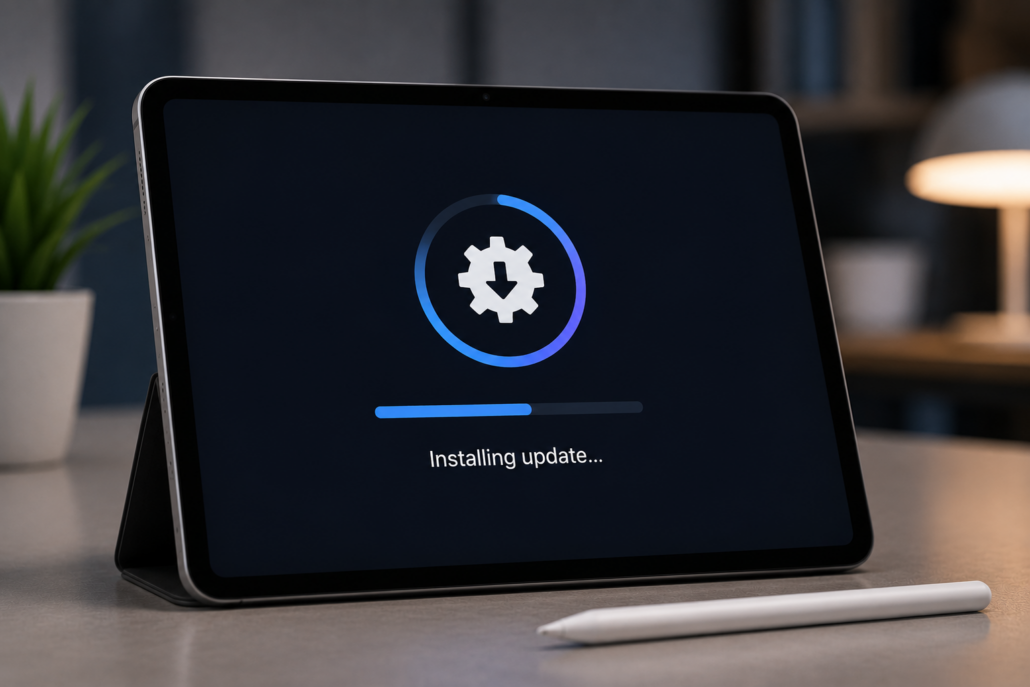
Tablet displaying the latest operating system update installation to improve security, stability, and performance.
Manufacturers regularly release updates that include:
- Performance improvements
- Security patches
- Battery optimizations
- Bug fixes
- Better app compatibility
Regularly checking for updates and keeping your tablet’s OS updated and apps current can significantly boost performance and stability.
2 Manage Background Apps
Background apps can consume system resources, slowing down your tablet’s performance. To optimize your tablet’s performance, you should periodically review and close any unnecessary background apps. On most tablets, you can access this feature through the task manager or app switcher. Be sure to close apps you aren’t actively using to free up valuable system resources.
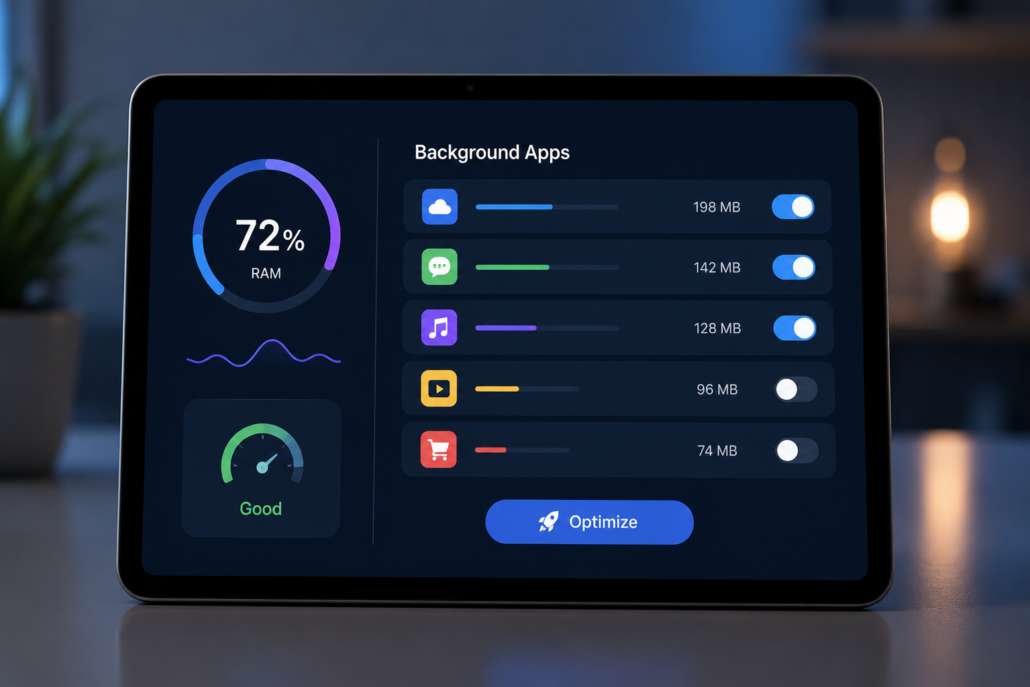
Tablet displaying background apps consuming RAM with memory usage indicators and optimization controls to improve system performance.
Background apps consume:
- RAM
- CPU resources
- Battery power
- Internet bandwidth
This is especially important for:
- Social media apps
- Cloud synchronization services
- Messaging apps
- Streaming services
3 Clear Cache and Temporary Files
Over time, your tablet’s storage can become cluttered with cache and temporary files, which can hamper performance. You can improve performance by periodically clearing these files. Go to your tablet’s settings and look for the option to clear cache or temporary files. Regularly performing this maintenance task can help maintain optimal performance.
4 Disable Unnecessary Animations
Animations are visually appealing but it can consume system resources. You can disable or reduce the intensity of animations in your tablet’s settings to enhance performance. This will make your tablet feel snappier and more responsive, especially when navigating through the interface.
5 Optimize Storage Space
Running out of storage space can negatively impact your tablet’s performance. To avoid this issue, regularly review your tablet’s storage and remove files, apps, or media that you no longer need. This will not only free up storage but also improve overall performance.
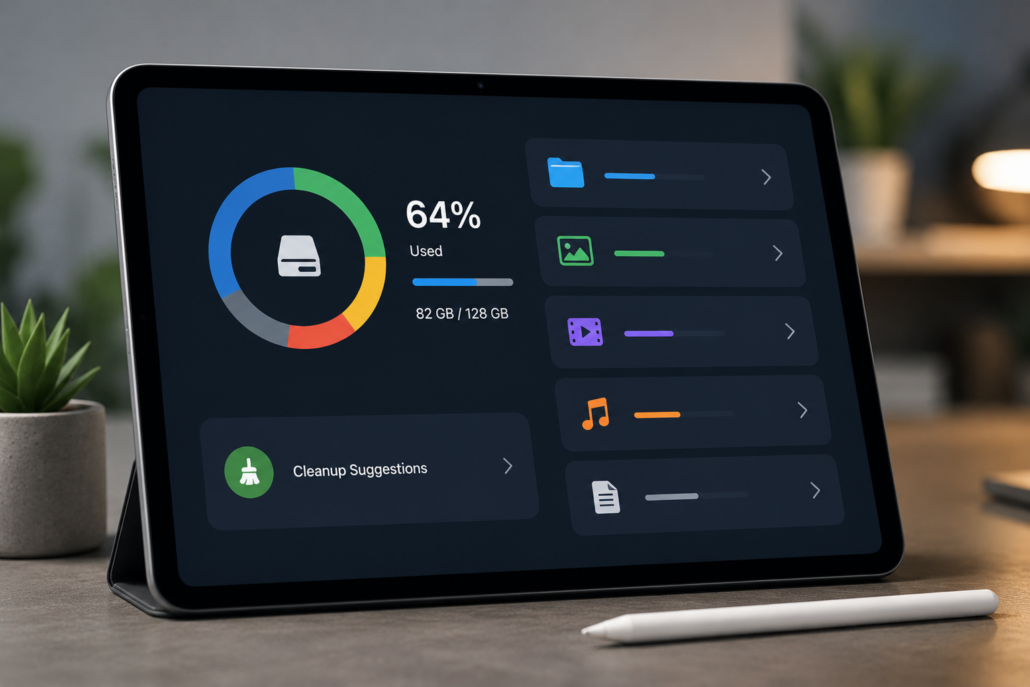
Tablet displaying storage management settings with available storage space, file categories, and cleanup options to optimize performance.
In order to free up storage, you can try the below steps:
- Delete unused apps
- Remove duplicate photos
- Clear downloaded files that are no longer needed
- Move files to cloud storage
- Delete unnecessary screenshots
- Empty recycle bins or recently deleted folders
Aim to keep at least 15–20% of your storage free for optimal performance.
6 Adjust Screen Brightness
Your tablet’s display is one of the biggest power consumers. Adjusting the screen brightness to an appropriate level can not only conserve battery life but also help improve performance by reducing the load on the GPU. An adaptive brightness feature can adjust the screen brightness automatically based on your environment, further optimizing the tablet’s performance.
7 Secure Your Device
Security is another aspect of performance optimization. Ensure your tablet is protected with a strong password or PIN, and consider enabling encryption to protect your data. A secure device is less vulnerable to malicious software, which can slow down your tablet’s performance.
8 Limit Background Processes
Some tablets allow you to limit background processes in the developer options. By reducing the number of background processes, your tablet can allocate more resources to the tasks you’re currently performing, leading to improved performance.
9 Manage Widgets and Live Wallpapers
Widgets and live wallpapers can be fun and informative, but they can also consume system resources. Carefully choose the widgets and wallpapers you use and limit them to essential ones. This will help your tablet run more smoothly and efficiently.
10 Perform a Factory Reset
If you’re still experiencing performance issues, a last resort is to perform a factory reset. This will wipe your tablet clean and return it to its initial state. Be sure to back up your important data before doing this, and only use it as a last option when all other optimization efforts have failed.
11 Use a High-Quality SD Card
If your tablet supports expandable storage via an SD card, consider using a high-quality, high-speed card. This can help with smoother access to media and files, reducing lag.
12 Manage Notifications
Excessive notifications can disrupt your tablet’s performance, especially when apps are constantly running in the background to push notifications. Go through your app notification settings and limit unnecessary alerts.
13 Disable Bloatware
Manufacturers often pre-install apps that you might not need. Disable or uninstall any bloatware apps that are using system resources without benefiting you.
14 Use a Lightweight Launcher
Consider using a lightweight and fast launcher, which can provide a snappier user interface compared to some of the more feature-rich but resource-intensive launchers available.
15 Optimize Battery Settings
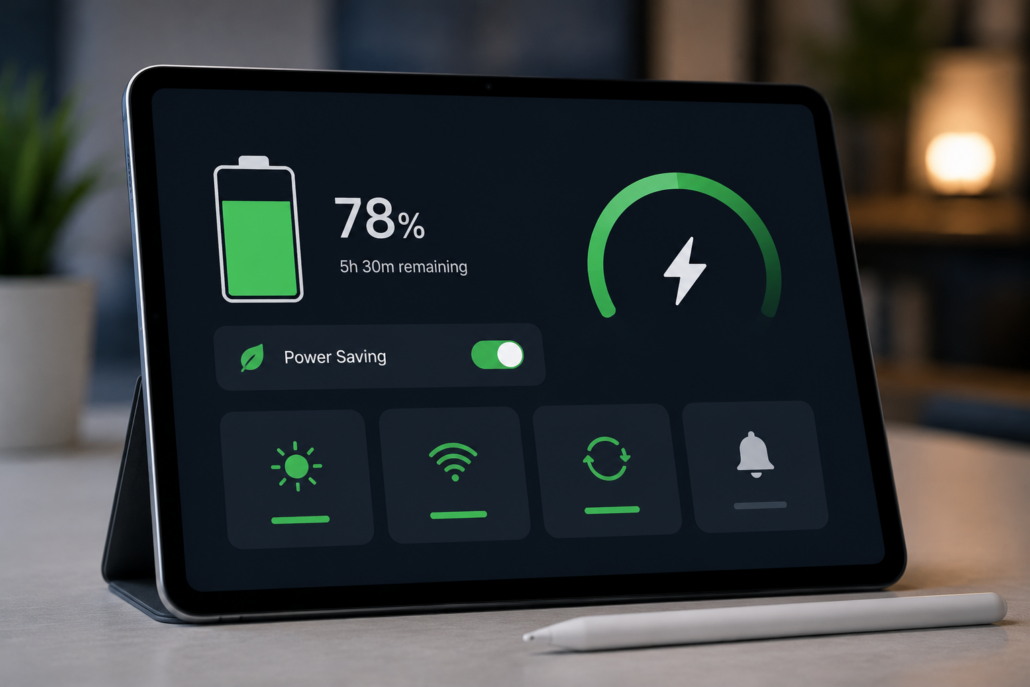
Tablet displaying a battery optimization dashboard with power-saving mode enabled, battery level, and energy management settings for improved performance.
Performance and battery life often go hand in hand. Enable built-in battery optimization features such as:
- Adaptive Battery
- Low Power Mode
- Battery Saver
- Smart Charging
These features reduce unnecessary background activity and improve overall efficiency without affecting daily use.
16 Optimize Wi-Fi and Data Connections
Weak or inconsistent network connections can cause apps to slow down or become unresponsive. Ensure a stable internet connection and turn off Wi-Fi or mobile data when not in use to conserve battery and reduce background data usage.
17 Use Lighter Apps
Many apps have lightweight versions designed to consume fewer resources. For example, you can use Facebook Lite instead of the full Facebook app, which can help improve both performance and battery life.
18 Regular Reboots
Restarting your tablet from time to time can clear the memory, close background processes, and refresh the system. This simple step can often resolve minor performance issues.
19 Check for Overheating
Overheating can lead to performance throttling. Make sure your tablet doesn’t get too hot by avoiding direct sunlight and keeping it well-ventilated. Consider using a cooling pad or case if needed.
20 Install a Task Manager
Some third-party task manager apps can help you monitor and manage running processes, which can be beneficial in keeping your tablet’s performance in check. However, be cautious as overuse of task managers can sometimes worsen the situation.
21 Upgrade to a Newer Tablet
If you’ve tried all these optimization strategies and are still experiencing significant performance issues, it might be time to consider upgrading to a newer tablet model with more robust hardware and a more optimized operating system.
22 Reduce Home Screen Clutter
A cleaner home screen allows the operating system to use fewer resources while remaining visually organized. An overloaded home screen requires extra system resources.
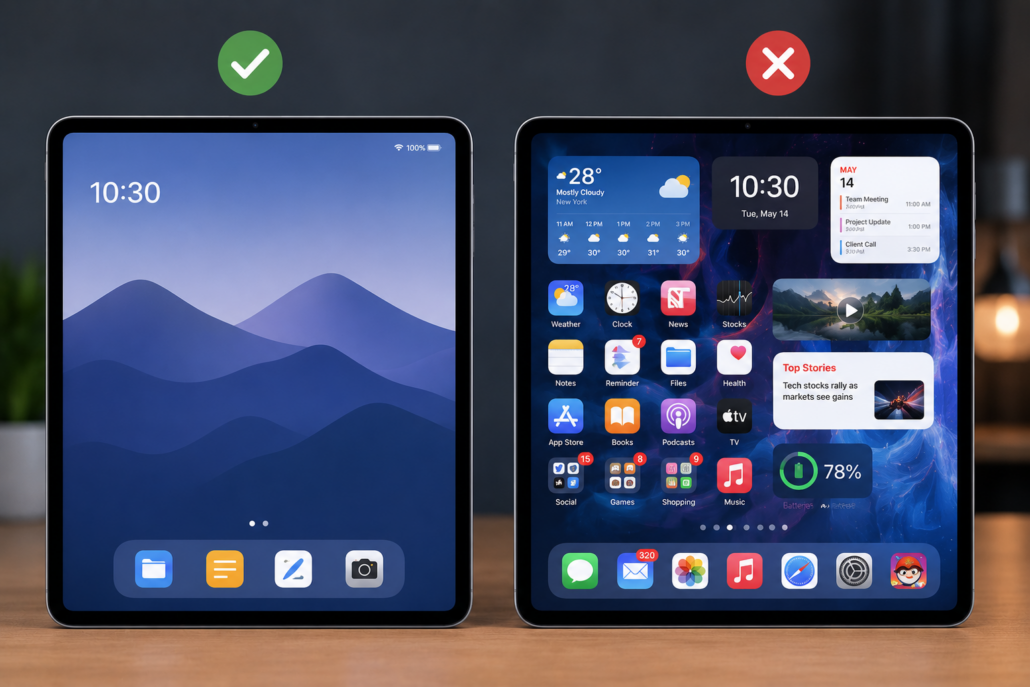
Side-by-side comparison of a clean tablet home screen and a cluttered layout with live widgets, animated wallpaper, excessive app shortcuts, and real-time weather widgets affecting performance.
Consider reducing:
- Live widgets
- Animated wallpapers
- Excessive app shortcuts
- Real-time weather widgets
23 Manage Startup Applications
Some tablets automatically launch apps during startup. Too many startup applications increase boot times and consume memory immediately after powering on. Disable startup apps that aren’t essential. Focus on keeping only:
- Security apps
- Cloud backup services
- Productivity tools that you use daily
24 Monitor Resource-Hungry Apps
If your tablet becomes sluggish, check battery and resource usage statistics to identify problematic apps. Some applications use significantly more CPU and RAM than others. Common examples include:
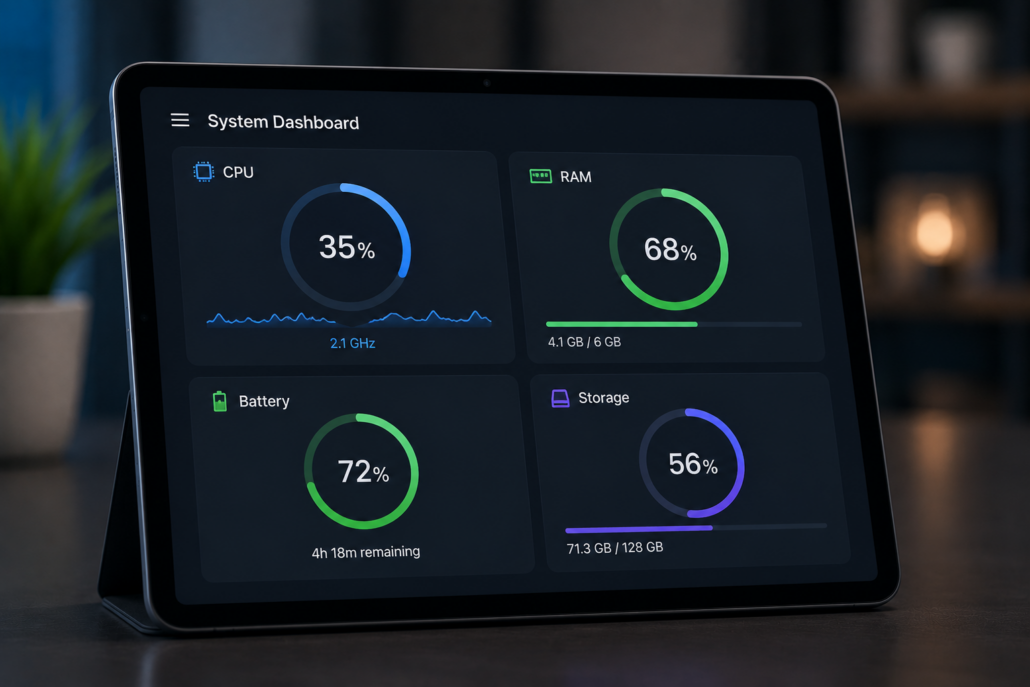
Tablet displaying a system performance dashboard with CPU usage, RAM utilization, battery status, and storage capacity for real-time performance monitoring.
- Video editing software
- Games
- Streaming platforms
- AI-powered productivity tools
- Photo editing applications
Replacing poorly optimized apps with lighter alternatives can improve performance considerably.
25 Optimize Browser Performance
Web browsers often become resource-intensive over time. Improve browsing speed by:
- Closing unused tabs
- Clearing browsing cache
- Removing unnecessary extensions
- Disabling auto-playing media
- Using reader mode when appropriate
A browser with dozens of open tabs can consume large amounts of memory.
26 Improve Internet Performance
Sometimes what appears to be a slow tablet is actually a slow network connection. Improve internet performance by:
- Connecting to faster Wi-Fi
- Restarting your router
- Updating router firmware
- Using modern Wi-Fi standards
- Closing bandwidth-heavy downloads
Fast internet improves:
- App loading
- Streaming
- Video calls
- Cloud synchronization
27 Use Trusted Applications Only
Download apps only from official app stores. Poorly optimized or malicious apps often reduce system performance. Trusted developers usually provide:
- Better optimization
- Regular updates
- Improved security
- Reduced battery consumption
Avoid unofficial app stores whenever possible.
28 Enable Automatic Storage Management
Many tablet operating systems now include intelligent storage management features. These tools automatically:
- Remove temporary files
- Delete unnecessary cache
- Identify duplicate files
- Recommend unused apps for removal
Using built-in storage optimization tools reduces manual maintenance.
Best Practices for Long-Term Tablet Performance
Maintain your tablet’s speed with these habits:
- Install updates promptly.
- Keep sufficient free storage available.
- Restart regularly.
- Remove unused apps.
- Limit background processes.
- Clear cache periodically.
- Use official apps.
- Protect against malware.
- Avoid overheating during charging.
- Back up important data regularly.
Small maintenance tasks performed consistently prevent major slowdowns later.
Common Mistakes That Slow Down Tablets
Avoid these common habits:
- Filling storage to maximum capacity
- Installing unnecessary apps
- Ignoring software updates
- Leaving hundreds of browser tabs open
- Running multiple heavy apps simultaneously
- Using outdated accessories or chargers
- Ignoring battery health
Correcting these habits can noticeably improve everyday performance.
Future Tablet Operating Systems
Future tablet operating systems are expected to become even smarter with AI-driven optimization features. Upcoming improvements may include:
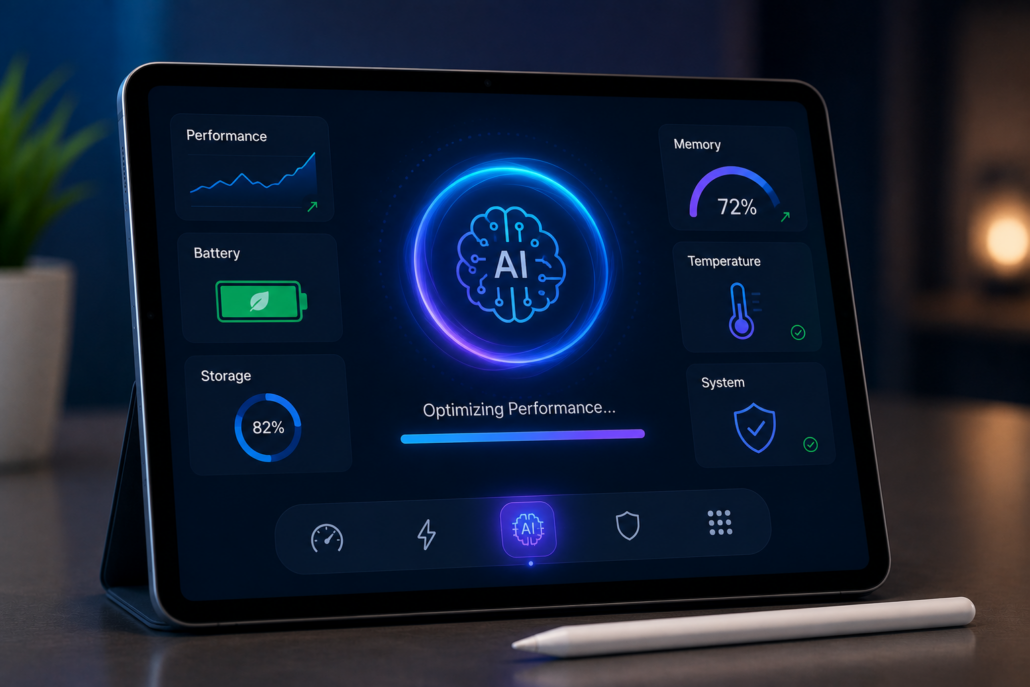
Futuristic tablet interface using artificial intelligence to automatically optimize performance, manage system resources, improve battery efficiency, and enhance overall user experience.
- Intelligent memory management
- Predictive app loading
- Automated storage cleanup
- Advanced battery learning
- On-device AI performance tuning
- Improved multitasking optimization
- Faster cloud synchronization
These innovations will help tablets remain responsive with less manual maintenance.
Conclusion
Optimizing your tablet operating system doesn’t require expensive upgrades or advanced technical skills. Regular software updates, proper storage management, responsible app usage, and built-in optimization tools can dramatically improve your tablet’s speed, responsiveness, and battery life. Whether you use your tablet for work, study, entertainment, or creativity, following these best practices ensures a smoother and more reliable experience. By making optimization part of your routine, you can extend your tablet’s lifespan, reduce frustration, and continue enjoying peak performance for years to come.