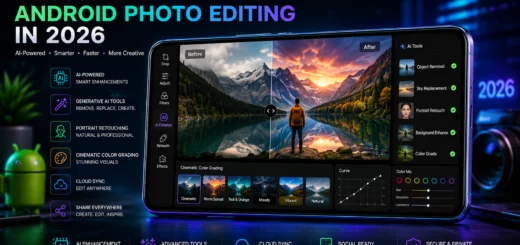
How to Use Photo Editor Apps Like a Pro: Tips and Techniques for Flawless Edits
In today’s digital world, photo editing has become an essential skill for content creators, social media users, photographers, and businesses alike. Whether you’re enhancing vacation photos, creating content for social media, or building a professional portfolio, learning how to use photo editor apps like a pro can significantly improve your results.
Table of Contents
- Why Photo Editing Matters
- Start with the Right Photo Editor App
- Understand the Basics of Exposure
- Master Cropping and Composition
- Enhance Colors Naturally
- Learn the Power of Selective Editing
- Use Filters as a Starting Point
- Retouch Portraits Professionally
- Improve Sharpness and Detail
- Take Advantage of AI Editing Features
- Remove Unwanted Objects
- Edit in the Correct Order
- Avoid Common Photo Editing Mistakes
- Save Photos in High Quality
- Practice and Develop Your Own Style
- Conclusion
This guide explores the best tips and techniques for achieving flawless edits using modern photo editing applications.
Why Photo Editing Matters
A great photo captures a moment, but proper editing enhances its impact. Modern cameras and smartphones already produce high-quality images, yet editing helps correct imperfections, improve lighting, emphasize subjects, and create a consistent visual style. Professional-looking edits can:
- Improve image quality
- Enhance colors and details
- Remove distractions
- Create a unique visual identity
- Increase engagement on social media
- Make products and portraits more appealing
The key is learning how to edit effectively without making images appear artificial.
Start with the Right Photo Editor App
Before diving into editing techniques, choose a reliable photo editor app that matches your needs.

Smartphone displaying multiple photo editing app interfaces and mobile editing tools for professional photo enhancement and image editing.
Popular options include:
- Adobe Lightroom Mobile
- Snapseed
- VSCO
- PicsArt
- Canva
- Photoshop Express
Each app offers unique tools, but most share similar core editing features such as cropping, exposure adjustment, filters, retouching, and color correction. Beginners should focus on mastering basic editing tools before experimenting with advanced features.
Understand the Basics of Exposure
Exposure is one of the most important aspects of photo editing. It determines how bright or dark an image appears.

Before-and-after photo comparison on a smartphone showing improved exposure, brightness, highlights, and shadows using mobile photo editing tools.
When editing:
Increase Exposure Carefully
If a photo looks too dark, slightly increase exposure. Avoid over-brightening, as it can wash out details and reduce image quality.
Adjust Highlights and Shadows
Highlights control bright areas, while shadows affect darker regions. A common professional technique is:
- Lower highlights to recover bright details
- Increase shadows to reveal hidden details
This creates a balanced image with more depth and dynamic range.
Use Contrast Sparingly
Contrast increases the difference between bright and dark areas. While higher contrast can make photos pop, excessive contrast may create harsh, unnatural results. Small adjustments often work best.
Master Cropping and Composition
Even excellent photos can benefit from better composition.
Apply the Rule of Thirds
Most photo editor apps provide a grid overlay. Position your subject along the grid lines or intersection points rather than centering everything. This creates more visually appealing images.

Photo editor app displaying a Rule of Thirds grid while cropping a landscape image to improve composition and visual balance.
Remove Distractions
Crop out unnecessary objects, empty spaces, or distracting background elements to keep attention on the main subject.
Straighten Horizons
Crooked horizons instantly make photos look amateurish. Use the straighten tool to align landscapes, architecture, and travel photos properly.
Enhance Colors Naturally
Color adjustments can dramatically improve a photo when used correctly.
Adjust White Balance
White balance controls color temperature.
- Increase warmth for golden, cozy tones
- Add coolness for modern, clean aesthetics

Photo editor interface showing color correction and white balance controls, including temperature, tint, vibrance, and saturation adjustments for enhancing image colors.
Correcting white balance helps achieve realistic skin tones and accurate colors.
Increase Vibrance Instead of Saturation
Many beginners overuse saturation. Professional editors often prefer vibrance because it boosts muted colors while protecting already saturated areas, resulting in a more natural appearance.
Fine-Tune Individual Colors
Advanced apps allow adjustment of specific colors. For example:
- Deepen blue skies
- Enhance green landscapes
- Refine skin tones
- Make products stand out
Selective color editing offers greater precision than global adjustments.
Learn the Power of Selective Editing
One technique that separates professionals from beginners is selective editing. Instead of applying changes to the entire image, selective tools allow adjustments to specific areas.

Photo editor app using selective masking tools to brighten a subject while keeping the background unchanged during mobile photo editing.
Common uses include:
- Brightening faces
- Enhancing eyes
- Darkening distracting backgrounds
- Adding emphasis to products
- Improving landscape details
Selective editing creates a more polished and professional result while maintaining a natural look.
Use Filters as a Starting Point
Filters can quickly improve photos, but professionals rarely use them at full strength.
Reduce Filter Intensity
Most photo editor apps allow filter strength adjustment. A good rule is to apply a filter and reduce its intensity to around 20-50%. This preserves authenticity while adding style.
Create a Consistent Visual Theme
If you’re editing images for social media, use similar filters and settings across multiple photos. Consistency helps establish a recognizable personal or brand identity.
Retouch Portraits Professionally
Portrait editing requires balance. The goal is enhancement, not transformation.
Smooth Skin Gently
Use skin-smoothing tools sparingly. Over-retouching often creates unrealistic, plastic-looking skin. Keep natural texture intact whenever possible.
Brighten Eyes
Subtle eye enhancement can make portraits appear more engaging. Increase brightness slightly and sharpen details carefully.

Portrait photo being retouched in a photo editing app with skin smoothing, blemish removal, and eye enhancement tools for professional portrait editing.
Remove Temporary Blemishes
Professional editors usually remove:
- Acne
- Dust spots
- Minor distractions
However, permanent features such as freckles or unique characteristics should generally remain to preserve authenticity.
Improve Sharpness and Detail
Sharpening helps emphasize important details.
Apply Sharpening Moderately
Excessive sharpening introduces unwanted noise and halos around objects.

Close-up before-and-after image demonstrating improved texture, clarity, and sharpness using photo editing enhancement tools.
Focus on enhancing:
- Eyes in portraits
- Product details
- Architectural elements
- Landscape textures
Use Structure and Clarity Tools
Many apps offer clarity or structure adjustments. These tools increase midtone contrast, making textures appear more detailed and crisp. Again, moderation is key.
Take Advantage of AI Editing Features
Modern photo editor apps increasingly use artificial intelligence (AI) to simplify editing.

Smartphone using AI-powered photo editing tools for automatic image enhancement, object removal, and background replacement in a mobile photo editor.
AI-powered features can:
- Remove backgrounds
- Replace skies
- Enhance portraits
- Reduce noise
- Improve image quality
- Suggest automatic corrections
While AI can save time, always review the final result manually. Automated adjustments aren’t always perfect and may require fine-tuning.
Remove Unwanted Objects
Object removal tools have become remarkably effective. Use healing or clone tools to eliminate:

Before-and-after photo comparison showing a distracting object removed from the background using AI-powered photo editing tools.
- Power lines
- Stray people
- Dust spots
- Background clutter
- Small distractions
For best results:
- Zoom in while editing
- Work slowly
- Use small brush sizes
- Check the final image at full size
Careful object removal can dramatically improve image quality.
Edit in the Correct Order
Professional editors often follow a consistent workflow. A recommended editing sequence:
- Crop and straighten
- Adjust exposure
- Correct highlights and shadows
- Fine-tune white balance
- Enhance colors
- Apply selective adjustments
- Retouch imperfections
- Sharpen details
- Add finishing touches
Following a structured process helps maintain consistency and prevents over-editing.
Avoid Common Photo Editing Mistakes
Many beginners unknowingly reduce image quality by making these mistakes:
Over-Saturation
Excessive colors can appear unrealistic and distracting.
Extreme HDR Effects
Overusing HDR creates unnatural halos and exaggerated textures.
Excessive Skin Smoothing
Plastic-looking skin often signals amateur editing.
Over-Sharpening
Too much sharpening introduces artifacts and noise.
Applying Too Many Filters
Combining multiple filters can create inconsistent and unrealistic results. The best edits often look subtle and natural.
Save Photos in High Quality
After spending time editing, don’t lose quality during export. When saving edited images:
- Use the highest available resolution
- Choose quality settings above 80%
- Maintain original aspect ratios when possible
- Save a copy of the original image
For social media, optimize file size while preserving image clarity.
Practice and Develop Your Own Style
The most skilled photo editors don’t simply follow trends—they develop a unique editing style. Experiment with:

Step-by-step professional photo editing workflow displayed on a tablet, showing the transformation from a raw image to a fully edited final photograph.
- Color grading
- Contrast levels
- Lighting effects
- Film-inspired looks
- Minimalist editing approaches
Study professional photographers and content creators to understand how they achieve consistent visual aesthetics. Over time, you’ll discover techniques that match your creative vision.
Conclusion
Learning how to use photo editor apps like a pro doesn’t require expensive equipment or years of experience. By mastering exposure adjustments, color correction, cropping, selective editing, retouching, and AI-powered tools, you can dramatically improve the quality of your photos. The secret to flawless edits lies in subtlety, consistency, and practice. Rather than relying heavily on filters or extreme effects, focus on enhancing the natural beauty of your images. As photo editor apps continue to evolve with advanced AI features and professional-grade tools, anyone can create stunning visuals directly from a smartphone or tablet. With patience and the right techniques, you’ll be producing professional-quality edits that stand out across social media, websites, portfolios, and digital marketing campaigns.