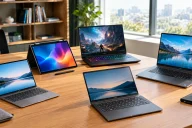
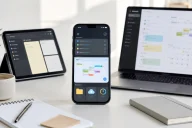
Home Desktop Computers Compared: Which Type is Right for You?
Choosing a desktop computer for home use is no longer as simple as buying the biggest or most powerful machine available. Today, home desktop computers come in many forms, from compact mini PCs and traditional tower desktops to all-in-one computers and powerful gaming systems. Each type is designed for different needs, budgets, and spaces.
Table of Contents
- What is a Home Desktop Computer?
- Main Types of Home Desktop Computers
- Desktop Computer Performance Compared
- Integrated Graphics vs Dedicated Graphics
- Display Options
- Connectivity and Ports
- Upgradeability Matters
- Power Consumption and Noise
- Which Home Desktop Computer Should You Choose?
- Home Desktop Computers Compared: Final Thoughts
A good home computer should provide enough performance for everyday activities while offering the right balance of storage, connectivity, upgrade options, power consumption, and price.
What is a Home Desktop Computer?
A home desktop computer is a computer designed to remain in a fixed location, usually on or near a desk. Unlike laptops, desktop computers generally require a separate display, keyboard, and mouse, although some models combine the computer and display in a single unit.
Desktop computers are popular for home offices, studying, entertainment, creative work, gaming, browsing the internet, and managing personal files.
One of their biggest advantages is that they can provide more performance for the money compared with similarly priced laptops. Many desktop computers also offer better cooling and easier upgrades.
Main Types of Home Desktop Computers
Before comparing specifications, it is useful to understand the different desktop formats available today.
1 Traditional Tower Desktop
Tower desktops are the classic choice for home computing. The computer components are housed inside a separate case, while the monitor sits independently on the desk.
These systems are available in different sizes, including full towers, mid-towers, and smaller desktop cases.

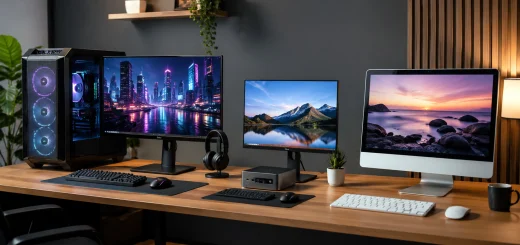
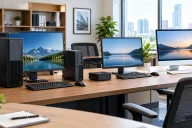
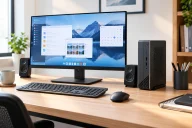
Traditional tower desktop computer with monitor on a home desk.
The biggest advantage of a tower desktop is flexibility. You can usually upgrade the RAM, storage, graphics card, cooling system, and other components depending on the design.
Tower desktops are suitable for people who want long-term performance and upgradeability. They are particularly useful for demanding workloads, gaming, photo editing, video editing, and other applications that require powerful hardware.
The disadvantage is that they occupy more space and usually require several separate components.
2 Mini PC
Mini PCs have become increasingly popular because they provide desktop functionality in a very small package.
A mini PC can be small enough to fit behind a monitor or inside a compact workspace. Despite their size, modern mini PCs can handle everyday computing, office applications, streaming, web browsing, programming, and even some creative workloads.

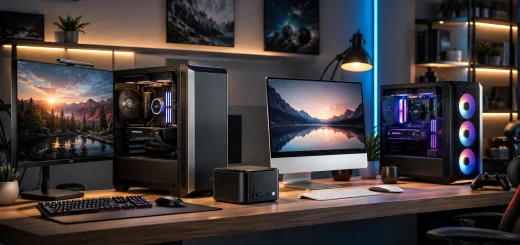
Compact mini PC connected to a monitor on a home desk.
Their small size also means they are convenient for homes with limited desk space.
However, upgrade options are generally more limited than with a traditional tower. Some mini PCs allow RAM or storage upgrades, while others have components that are difficult or impossible to replace.
A mini PC is a practical choice for users who value compact design and low clutter.
3 All-in-One Desktop
An all-in-one, or AIO, combines the computer and display into a single unit.
This design reduces cable clutter and creates a clean-looking workspace. It can be especially attractive for home offices, students, families, and people who prefer a simple setup.

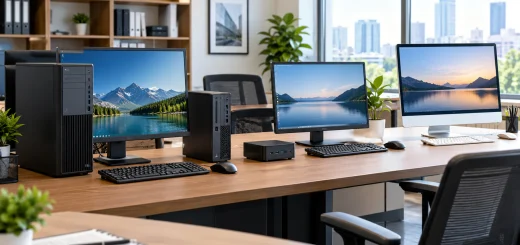
All-in-one desktop computer with integrated display in a home office.
The main limitation is upgradeability. Because the computer components are integrated behind the display, replacing or upgrading individual components can be more difficult than with a traditional desktop.
An all-in-one is therefore more suitable for users who want convenience and simplicity rather than maximum flexibility.
4 Gaming Desktop
Gaming desktops are designed for demanding graphics and high-performance applications.
They typically include a powerful processor, dedicated graphics card, fast memory, high-speed storage, and improved cooling. Gaming desktops can also be useful for video editing, 3D applications, content creation, and other demanding tasks.

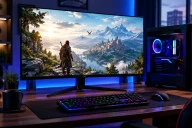
High-performance gaming desktop computer with monitor and accessories.
Their main disadvantages are higher prices, greater power consumption, and larger cases.
For someone who only needs a computer for browsing and office work, a gaming desktop may provide considerably more performance than necessary.
Desktop Computer Performance Compared
The processor is one of the most important components in a desktop computer. A modern multi-core processor can handle everyday tasks such as browsing, video calls, document editing, and media playback without difficulty.
Users performing heavier workloads should consider processors with more cores and higher performance.

Desktop computer processor RAM SSD motherboard and graphics card.
RAM is another important factor. For basic home use, 8GB can work, but 16GB is a more comfortable choice for modern multitasking. Users working with large files, creative applications, virtual machines, or demanding software may benefit from 32GB or more.
Storage is also important. Solid-state drives provide much faster boot times and application loading compared with older mechanical hard drives.
For most home users, an SSD should be the preferred primary storage option. A larger SSD can also reduce the need to manage files constantly.
Integrated Graphics vs Dedicated Graphics
Not every home desktop needs a dedicated graphics card.
Integrated graphics are built into certain processors and can handle everyday activities, video playback, office applications, and many casual games.
A dedicated graphics card has its own graphics processing hardware and memory. It is useful for modern gaming, 3D rendering, professional creative applications, and other graphics-intensive workloads.
If gaming or advanced creative work is not part of your routine, spending extra money on a powerful graphics card may not be necessary.
Display Options
The monitor is an important part of a desktop setup because it directly affects your daily viewing experience.
A 24-inch monitor can be suitable for general home use, while larger 27-inch or ultrawide displays provide more workspace.
Resolution is another consideration. Full HD remains practical for many everyday users, while higher-resolution displays can provide sharper images and more workspace.
For office work, a comfortable screen with good viewing angles and suitable brightness may be more important than extremely high refresh rates.
Gamers, however, may prefer displays with higher refresh rates and fast response times.
Connectivity and Ports
When comparing home desktop computers, do not overlook connectivity.
USB ports are essential for keyboards, mice, storage drives, printers, cameras, and other accessories. Newer USB standards can offer faster data transfer and charging.
HDMI and DisplayPort connections are useful for connecting monitors and televisions. Ethernet is valuable for users who want a stable wired internet connection.
Wireless connectivity is also important. Wi-Fi and Bluetooth can reduce the need for cables and make it easier to connect headphones, speakers, keyboards, mice, and other accessories.
Before buying, check the exact number and types of ports available.
Upgradeability Matters
One of the biggest differences between desktop formats is upgradeability.
A traditional tower usually offers the greatest flexibility. You may be able to add more RAM, install additional storage, replace the graphics card, or upgrade other components.
Mini PCs and all-in-one computers generally provide fewer upgrade possibilities.
If you expect your computing needs to increase over several years, a more upgradeable desktop may provide better long-term flexibility.
Power Consumption and Noise
Power consumption can be an important consideration for a computer that remains switched on for long periods.
High-performance gaming desktops generally consume more power than compact systems. Mini PCs are often designed around lower-power components and can be attractive for users who want an energy-conscious setup.
Noise is another consideration. Powerful components generate more heat and may require larger or faster cooling fans.
For a bedroom, study room, or quiet home office, a low-noise computer can make a noticeable difference.
Which Home Desktop Computer Should You Choose?
The right choice depends on how you plan to use the computer.

Different home desktop computer setups for work study and gaming.
For basic home use, such as web browsing, email, online learning, documents, and streaming, a mini PC or affordable traditional desktop can be sufficient.
For a home office, look for a reliable processor, at least 16GB of RAM if your budget allows, fast SSD storage, useful connectivity, and a comfortable monitor.
For students, a compact desktop can provide a good combination of affordability and performance. An all-in-one can also be useful when desk space is limited.
For content creators, prioritize a stronger processor, more RAM, fast storage, and a suitable dedicated graphics card when required by the software.
For gamers, a gaming desktop with a dedicated graphics card, adequate cooling, fast storage, and a high-refresh-rate monitor can provide a better experience.
For small spaces, a mini PC or all-in-one desktop can keep the workspace clean and organized.
Home Desktop Computers Compared: Final Thoughts
There is no single desktop computer that is perfect for every home user. The best choice depends on your workload, available space, budget, and expectations for future upgrades.
Traditional tower desktops provide flexibility and upgradeability, while mini PCs offer compact designs and efficient everyday performance. All-in-one computers provide a clean and simple setup, while gaming desktops deliver the higher performance needed for demanding applications.
Instead of focusing only on processor speed or brand name, compare the complete system. Look at the RAM, SSD capacity, graphics capability, display requirements, ports, upgrade options, power consumption, and cooling system.
A computer that matches your actual needs can provide a better experience and avoid paying for performance you may never use. Whether you need a simple home computer, a compact office machine, or a powerful gaming and creative workstation, understanding these differences makes it easier to choose the right desktop for your home.