Complete USB-C Standards Guide: Everything You Need to Know
USB-C has quickly become the universal connector for smartphones, tablets, laptops, gaming devices, external storage and countless accessories. However, many users assume that every USB-C port offers the same capabilities. In reality, USB-C is only the connector type – the underlying standards determine charging speed, data transfer rates, video output and compatibility.
Table of Contents
- What is USB-C?
- Why USB-C Standards Matter
- USB-C Connector vs USB Standard
- USB 2.0 over USB-C
- USB 3.2 Standards Explained
- USB4: The Modern Standard
- USB4 Version 2.0
- Understanding USB Power Delivery (USB PD)
- Thunderbolt and USB-C
- Video Output Through USB-C
- Choosing the Right USB-C Cable
- Common USB-C Symbols
- Common USB-C Myths
- Tips for Buying USB-C Accessories
- The Future of USB-C
- Conclusion
Understanding USB-C standards helps you choose the right cable, charger and device while avoiding performance limitations.
What is USB-C?
USB-C (USB Type-C) is a reversible, compact connector introduced by the USB Implementers Forum (USB-IF). Unlike older USB-A or Micro-USB connectors, USB-C plugs in either direction, making it far more convenient.
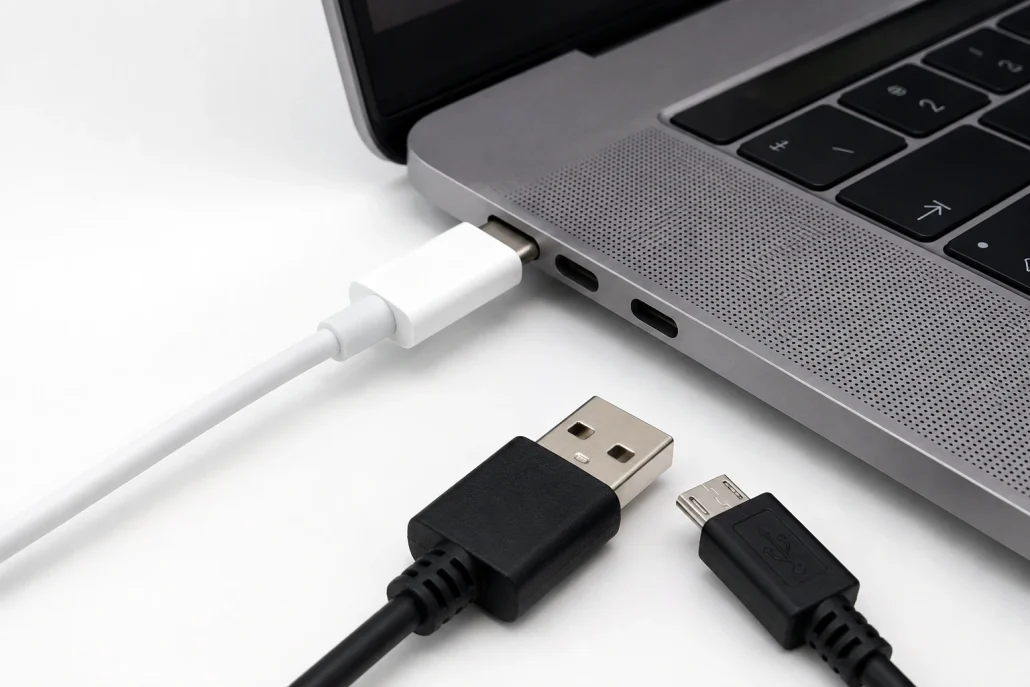
USB-C connector next to USB-A and Micro-USB connectors showing the modern reversible USB-C design.
More importantly, USB-C supports multiple technologies through a single connector, including:
- Fast charging
- High-speed data transfer
- Video output
- Audio transmission
- External device connectivity
- Docking stations
The connector looks the same across devices, but its capabilities depend on the supported USB standard.
Why USB-C Standards Matter
Many people purchase a USB-C cable expecting maximum performance, only to discover slow charging or limited transfer speeds.
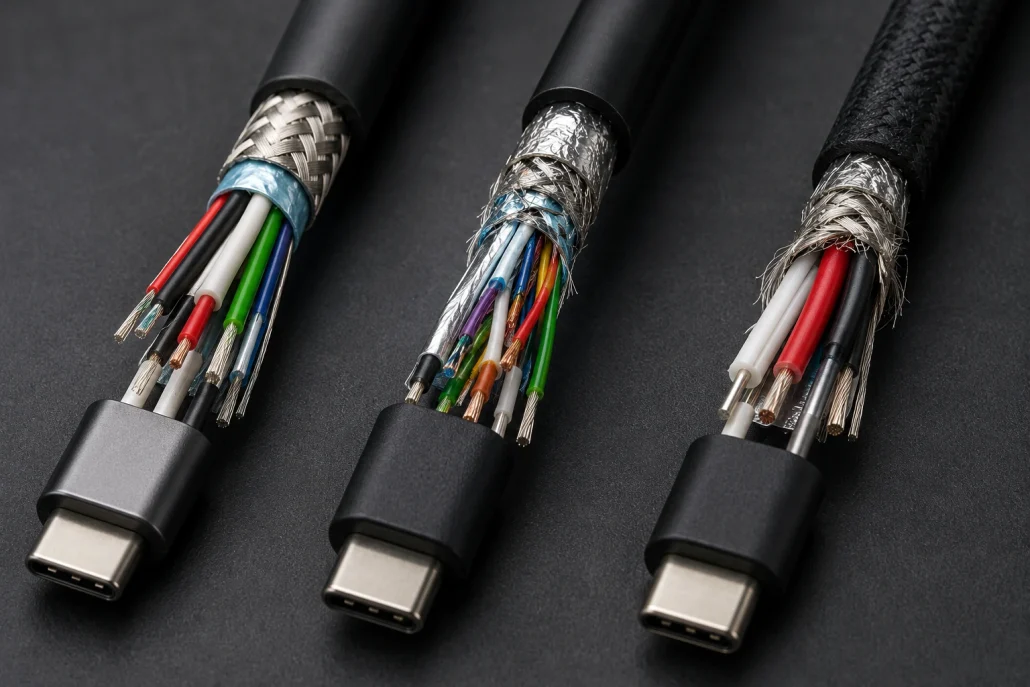
Close-up cutaway view of USB-C cables showing different internal wire and shielding construction.
Different USB-C ports may support:
- Charging only
- USB 2.0 data speeds
- USB 3.x high-speed transfers
- USB4
- Thunderbolt
- DisplayPort Alt Mode
- HDMI Alt Mode
Knowing these differences ensures you buy compatible accessories and achieve the performance your device is capable of delivering.
USB-C Connector vs USB Standard
One of the biggest misconceptions is confusing the connector with the technology. USB-C refers only to the physical connector. USB standards define:
- Transfer speed
- Charging capability
- Power delivery
- Video support
- Device compatibility
For example, two laptops may both have USB-C ports, but one may support only USB 2.0 while another supports Thunderbolt 5 with dramatically higher speeds.
USB 2.0 over USB-C
Some budget devices still use USB 2.0 through a USB-C connector. Features include:
- Maximum speed: 480 Mbps
- Basic charging
- Suitable for keyboards, mice and simple accessories
- Lower manufacturing cost
Although perfectly functional for charging, USB 2.0 is noticeably slower for transferring photos, videos and large files.
USB 3.2 Standards Explained
USB 3.2 remains one of the most common USB-C implementations.
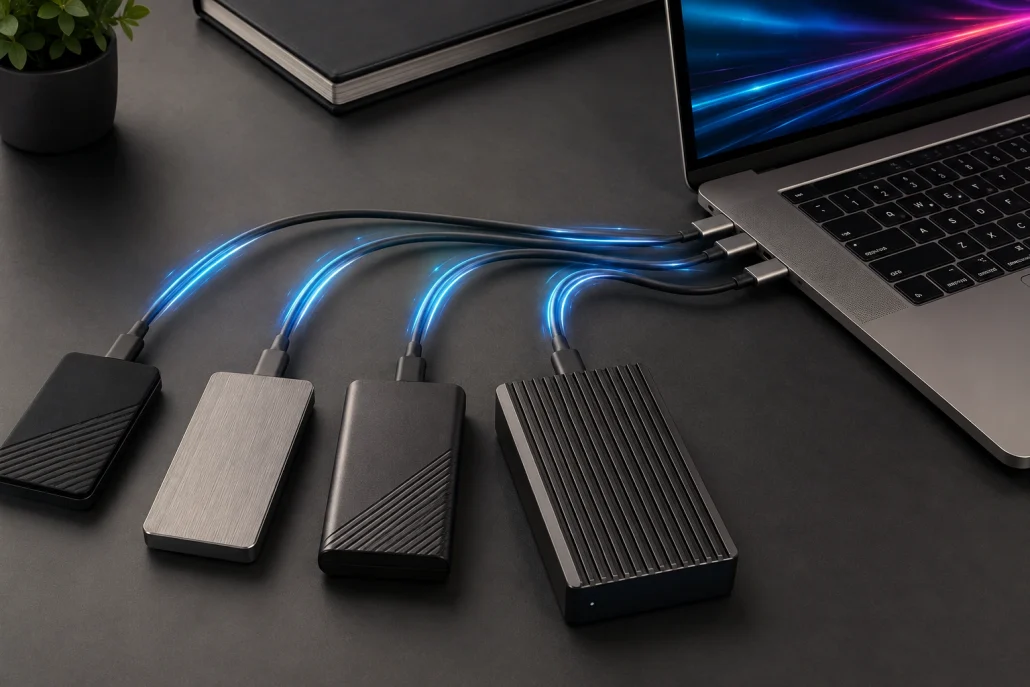
External SSDs connected through USB-C cables illustrating different USB data transfer capabilities.
USB 3.2 Gen 1
Previously known as USB 3.0. Features:
- Up to 5 Gbps
- Fast external storage
- HD video transfers
- Reliable for everyday use
USB 3.2 Gen 2
Offers twice the bandwidth. Features include:
- Up to 10 Gbps
- Faster SSD performance
- Improved media editing workflows
- Better backup speeds
USB 3.2 Gen 2×2
Uses two high-speed lanes. Capabilities:
- Up to 20 Gbps
- Excellent for external NVMe SSDs
- High-performance professional workflows
Not every device supports Gen 2×2, so compatibility should always be verified before purchasing.
USB4: The Modern Standard
USB4 significantly improves speed, flexibility and compatibility.
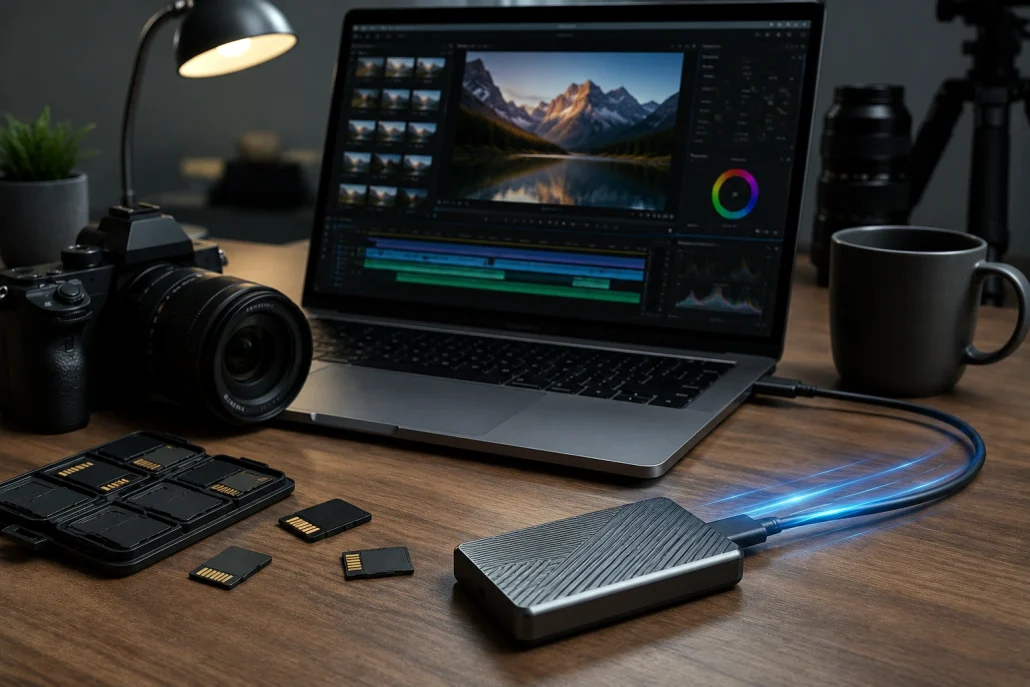
Laptop connected to a USB-C external SSD during high-speed file transfer from a digital camera.
Advantages include:
- Up to 40 Gbps
- Better bandwidth allocation
- Improved display support
- Native Thunderbolt 3 compatibility
- Simultaneous data and video transmission
USB4 simplifies connectivity while delivering excellent performance for modern computers and accessories.
USB4 Version 2.0
The newest USB4 specification dramatically increases bandwidth. Potential features include:
- Up to 80 Gbps bidirectional transfer
- Up to 120 Gbps in specific display-focused configurations
- Better support for high-resolution monitors
- Faster external graphics solutions
- Enhanced professional workflows
As newer laptops and accessories adopt USB4 Version 2.0, users can expect desktop-class connectivity from a single USB-C cable.
Understanding USB Power Delivery (USB PD)
Charging speed depends on USB Power Delivery rather than the connector itself. USB PD enables devices to negotiate safe charging levels between chargers and connected devices.
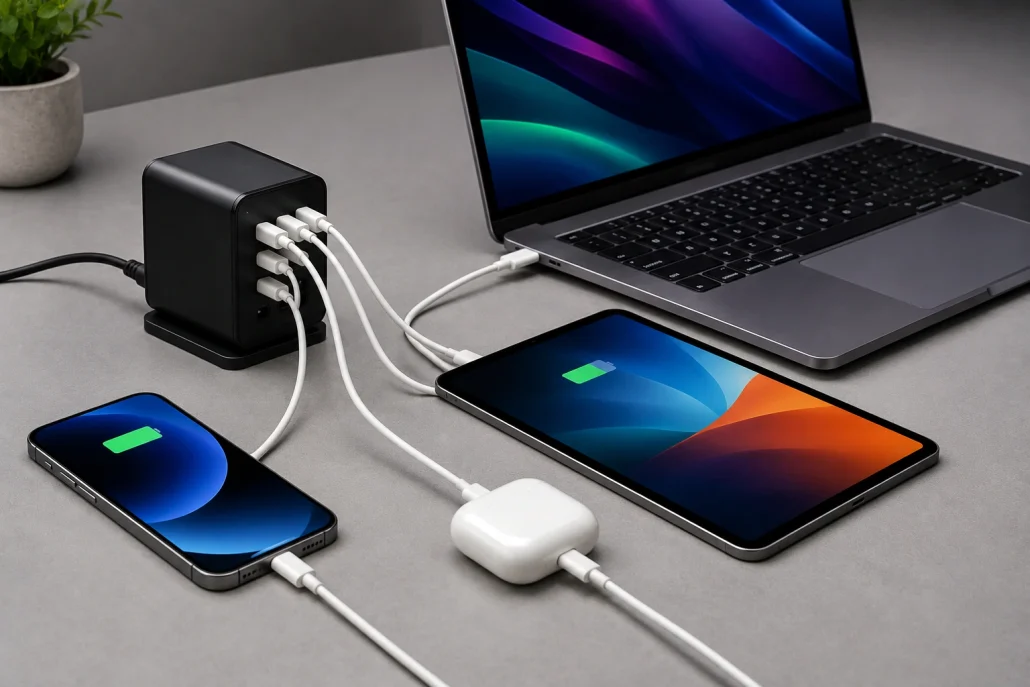
USB-C Power Delivery charger charging multiple devices such as laptop, smartphone and tablet.
Benefits include:
- Fast smartphone charging
- Laptop charging
- Tablet charging
- Monitor power delivery
- Universal charger compatibility
Modern USB PD implementations can deliver up to 240W using the Extended Power Range (EPR) specification, making USB-C suitable even for many high-performance laptops and professional equipment.
Thunderbolt and USB-C
Thunderbolt uses the USB-C connector but offers additional capabilities.

Laptop connected through a USB-C docking station to dual monitors, external storage and accessories.
Thunderbolt 3
Supports:
- Up to 40 Gbps
- Dual 4K displays
- External GPUs
- High-speed storage
Thunderbolt 4
Improves minimum certification requirements with:
- Mandatory 40 Gbps
- Better docking support
- Enhanced security
- Improved display compatibility
Thunderbolt 5
The latest generation introduces major improvements, including:
- Up to 80 Gbps standard bandwidth
- Higher bandwidth for demanding displays
- Support for advanced external GPUs
- Improved professional content creation workflows
Thunderbolt cables generally remain backward compatible with many USB-C devices.
Video Output Through USB-C
Many USB-C ports can transmit video without requiring a separate display connector. Common video technologies include:
- DisplayPort Alt Mode
- HDMI Alt Mode
- USB4 display support
- Thunderbolt display connectivity
These standards allow users to connect:
- 4K monitors
- 5K displays
- 8K displays
- Ultrawide monitors
- Portable monitors
However, not every USB-C port supports video output, so checking your device specifications is essential.
Choosing the Right USB-C Cable
Not all USB-C cables are created equal.
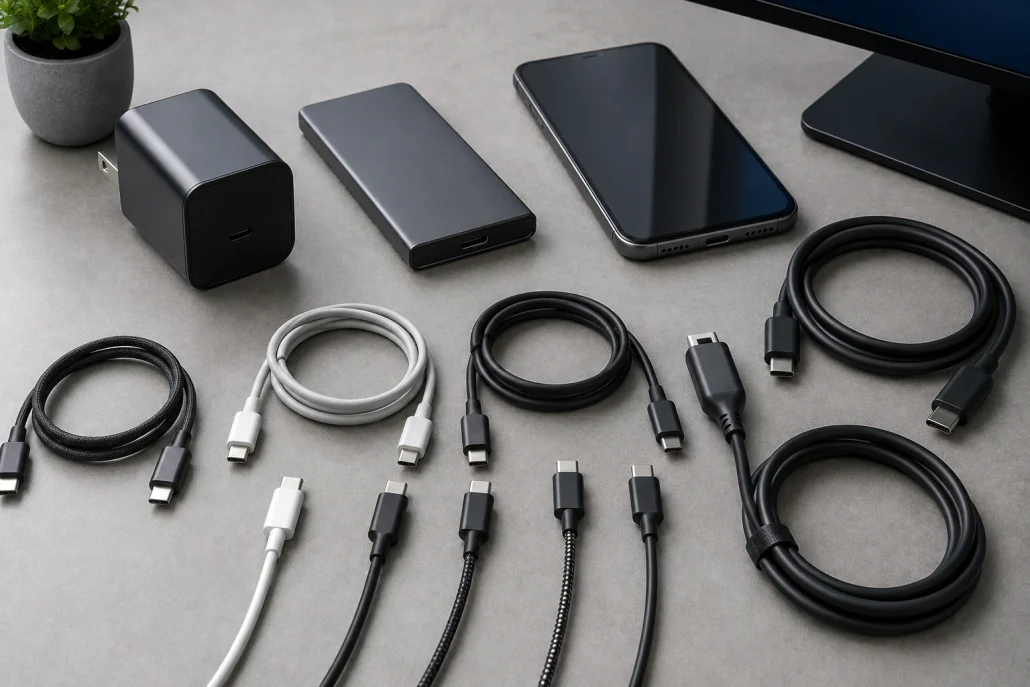
Various USB-C cables displayed with modern devices to show compatibility for charging, data transfer and display connections.
Before buying, verify:
- Supported USB version
- Charging wattage
- Data transfer speed
- Video support
- Thunderbolt certification
- Cable length
- USB-IF certification
A low-cost charging cable may not support high-speed data transfer or video output, while a premium cable can handle charging, storage and displays simultaneously.
Common USB-C Symbols
Manufacturers often mark USB-C ports with symbols indicating their capabilities. Examples include:
- Battery icon for charging
- Lightning bolt for Thunderbolt
- Display icon for video output
- USB speed labels
- Power Delivery logos
These markings provide quick clues about supported features.
Common USB-C Myths
Several misconceptions continue to confuse buyers. Myth 1: Every USB-C cable is identical. False. Cables differ in charging speed, data rate and video support. Myth 2: Every USB-C port supports fast charging. Not necessarily. Charging capabilities depend on device hardware and Power Delivery support. Myth 3: USB-C automatically means Thunderbolt. Incorrect. Thunderbolt uses USB-C connectors, but many USB-C ports are not Thunderbolt-enabled. Myth 4: Every USB-C port supports monitors. Some ports only support charging and data, with no display output.
Tips for Buying USB-C Accessories
To maximize compatibility and performance:
- Match the cable to your device’s specifications.
- Choose certified USB-IF or Thunderbolt-certified accessories.
- Buy chargers with sufficient wattage.
- Consider future upgrades when selecting cables.
- Avoid extremely cheap, uncertified cables for high-power devices.
- Read product specifications carefully before purchasing.
A little research can prevent slow charging, limited transfer speeds and unnecessary compatibility issues.
The Future of USB-C
USB-C continues to evolve as the universal standard for consumer electronics. With USB4 Version 2.0, higher Power Delivery limits, faster storage and advanced display capabilities, users can increasingly rely on a single connector for nearly every computing task. As manufacturers continue adopting USB-C across smartphones, laptops, tablets, monitors, gaming handhelds and accessories, understanding the underlying standards becomes even more valuable.
Conclusion
USB-C has transformed device connectivity by combining charging, data transfer, video output and peripheral support into one compact connector. However, the connector alone doesn’t determine performance. USB versions, Power Delivery, Thunderbolt compatibility and cable quality all play essential roles in the overall experience. By understanding USB-C standards, you can confidently choose compatible accessories, enjoy faster charging, transfer files more efficiently and make informed purchasing decisions. Whether you’re upgrading your workstation, buying a new laptop, or simply replacing a cable, understanding what each USB-C standard offers will help you get the most from your devices.